
Trusted Driver Information Hub
No shortcuts. No guesswork. Just trusted driver knowledge explained in simple terms.
See it in action
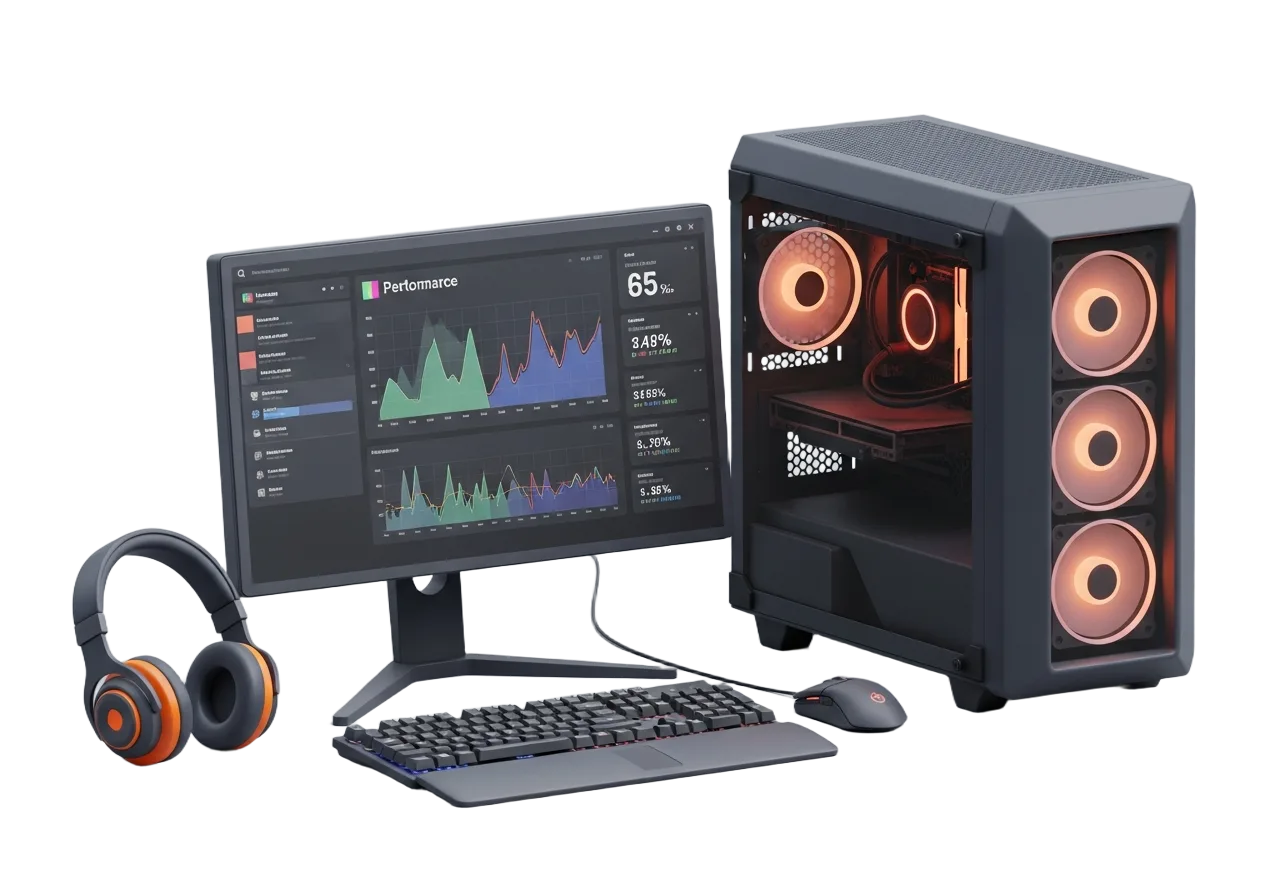
What healthy, up‑to‑date drivers look like
A modern control panel puts performance, temperatures and per‑app tuning in one place. Here's the kind of visibility a correctly installed one gives you.
Explore Driver Guides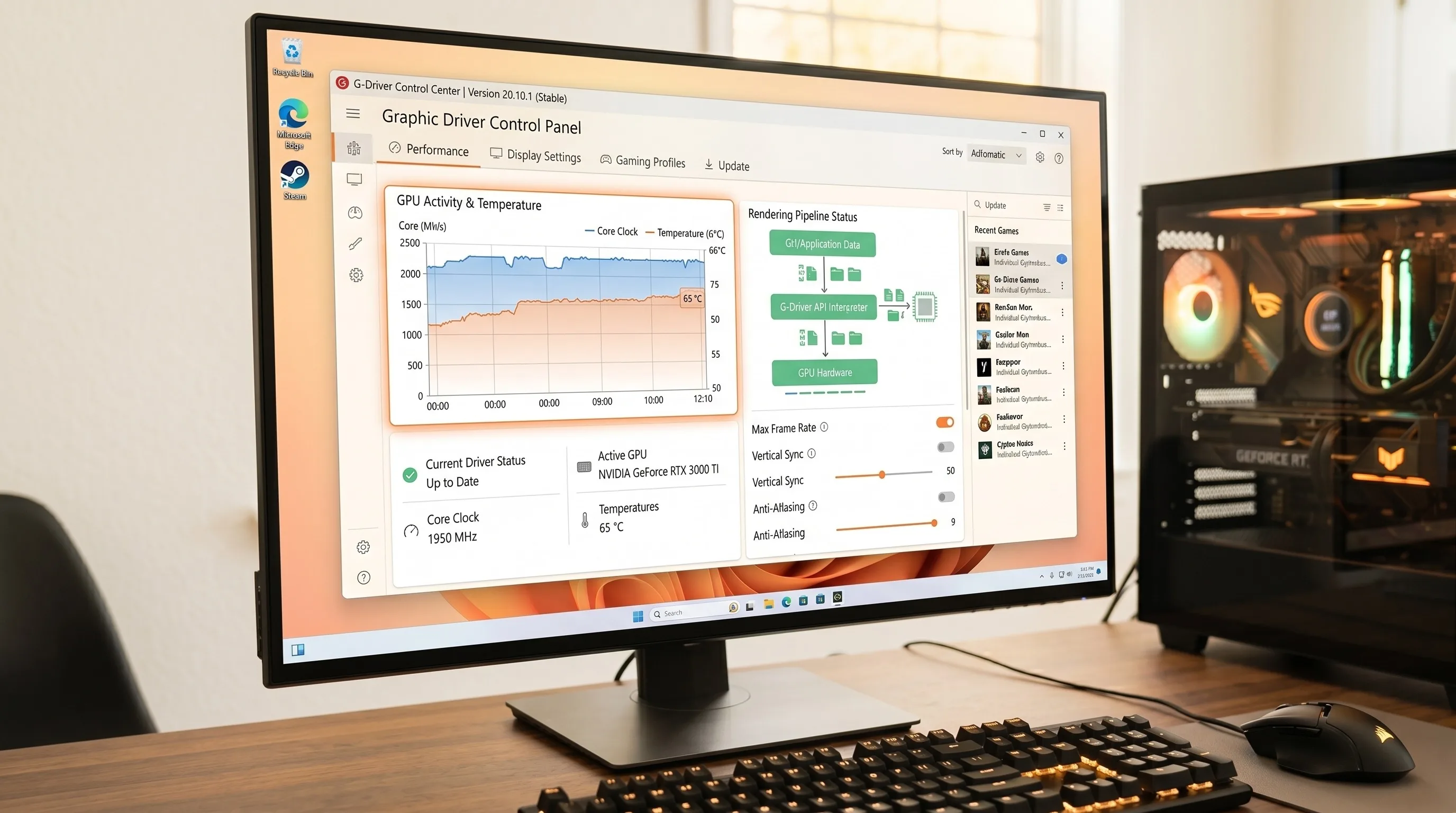
Every PC driver, organised by category
All 22 driver guides we publish, grouped the way your device manager groups them. Pick a category, find your hardware, follow the steps.
Powering Your Audio & Visual Experience
High-performance drivers for high-performance hardware.
Explore All Drivers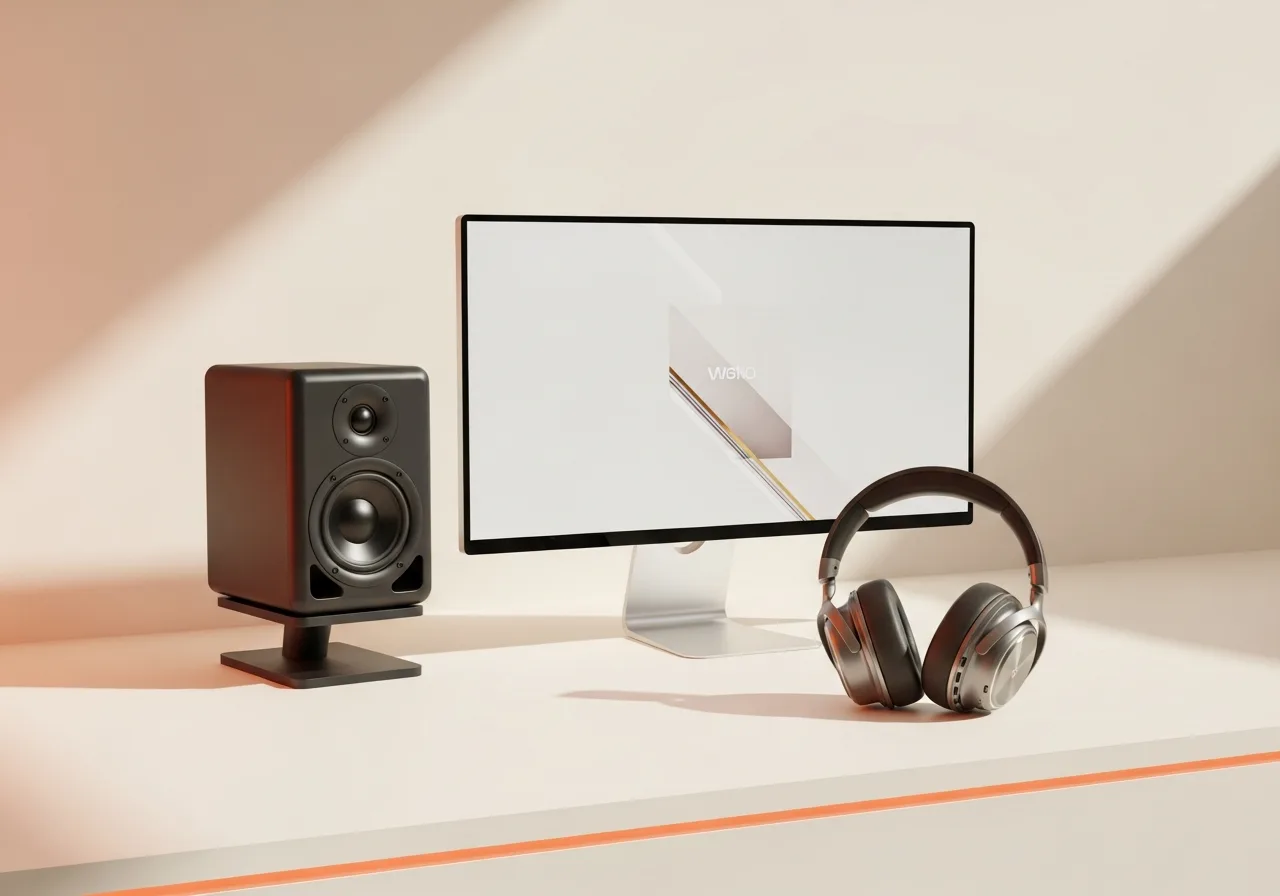

Stay Connected, Always
Reliable wireless and wired drivers that keep every device in sync.
Explore All Drivers
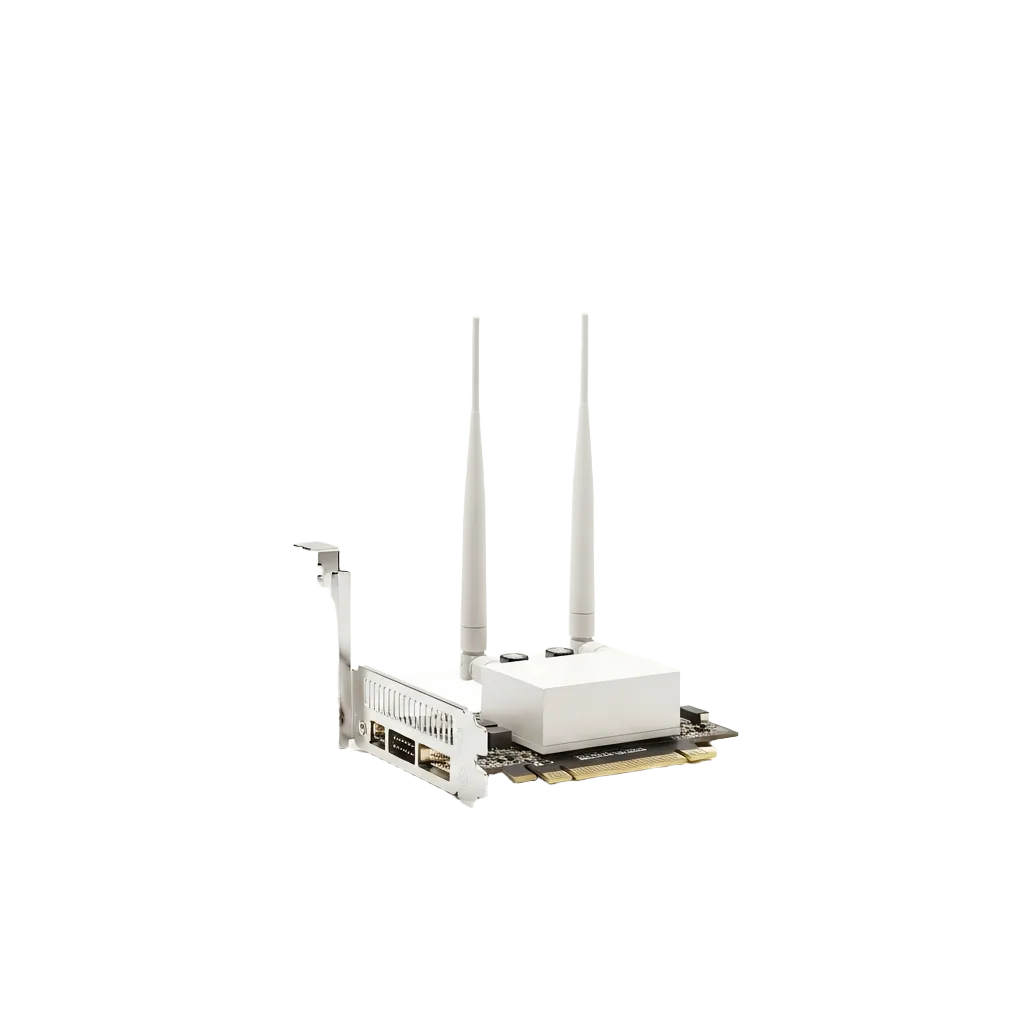
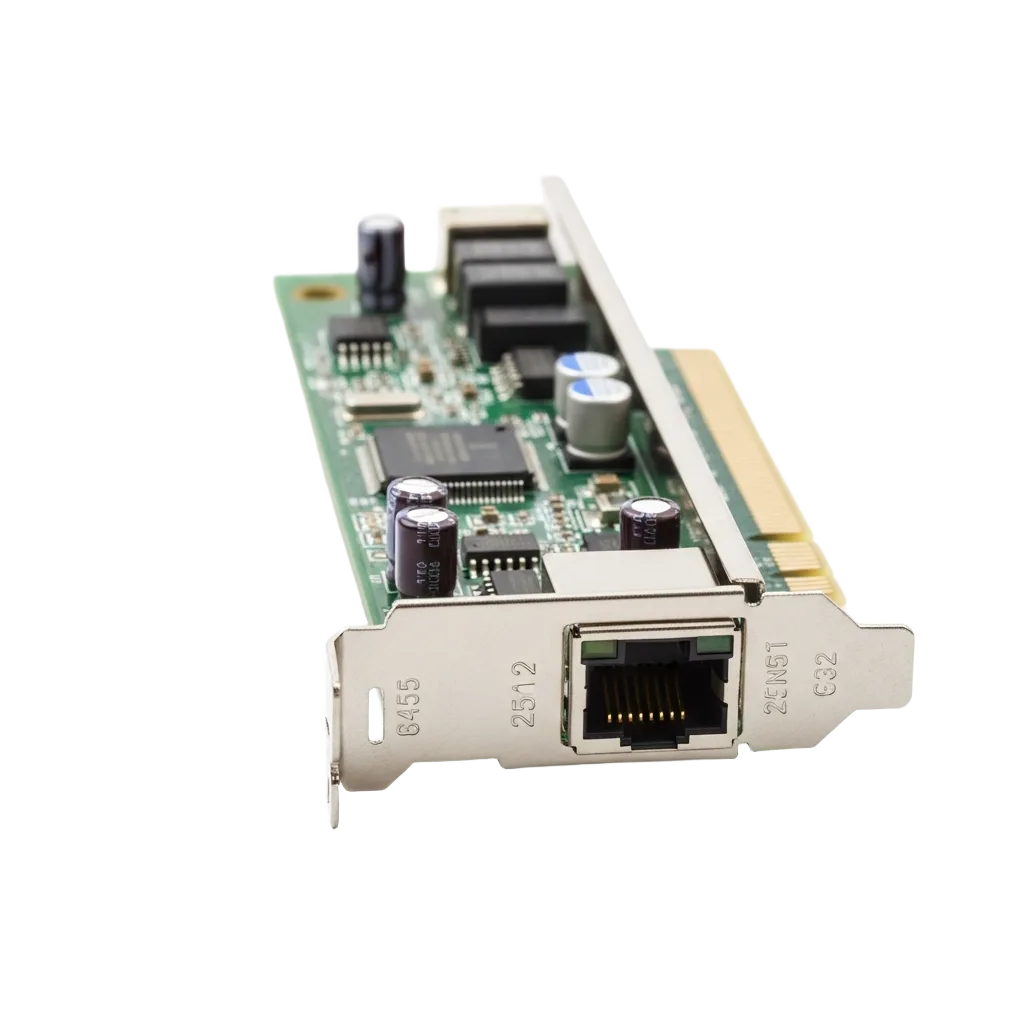
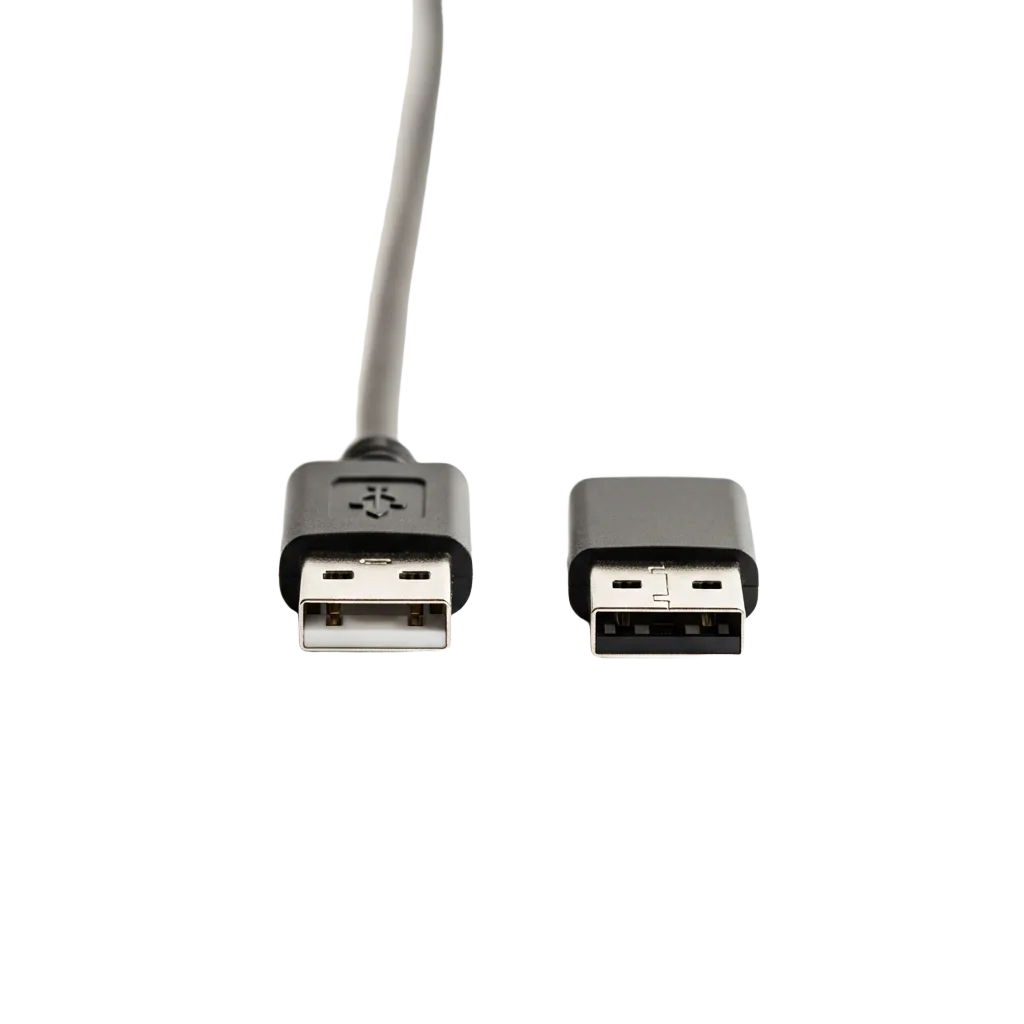
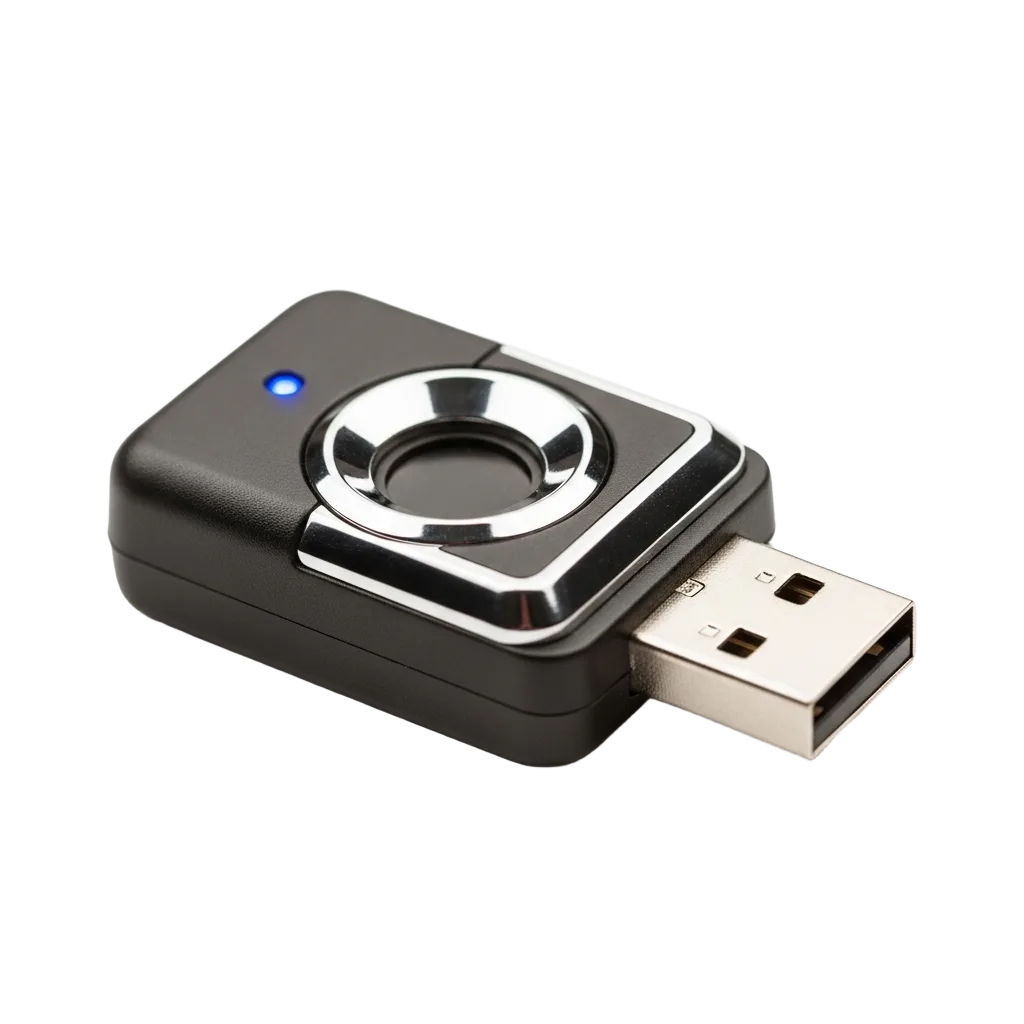
Total Control at Your Fingertips
Precision drivers for keyboards, mice, controllers and biometrics.
Explore All Drivers
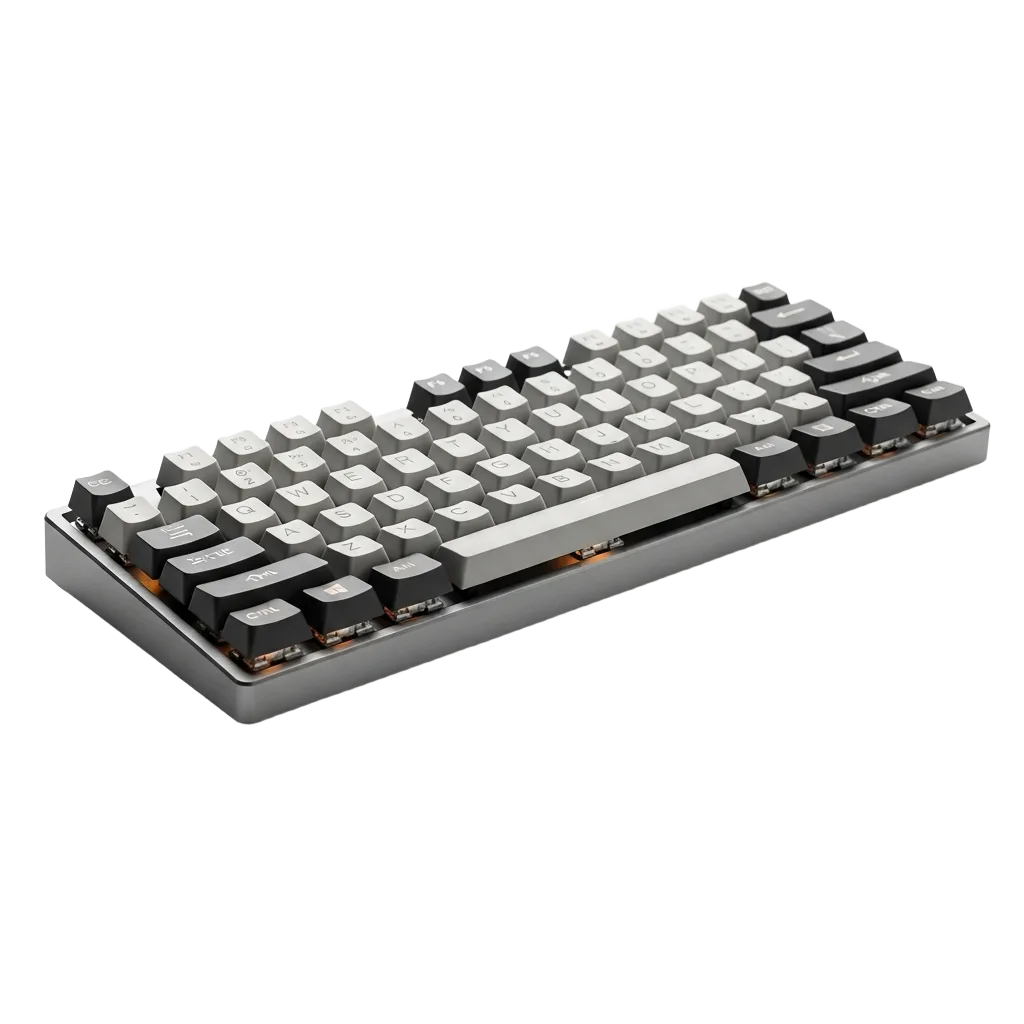
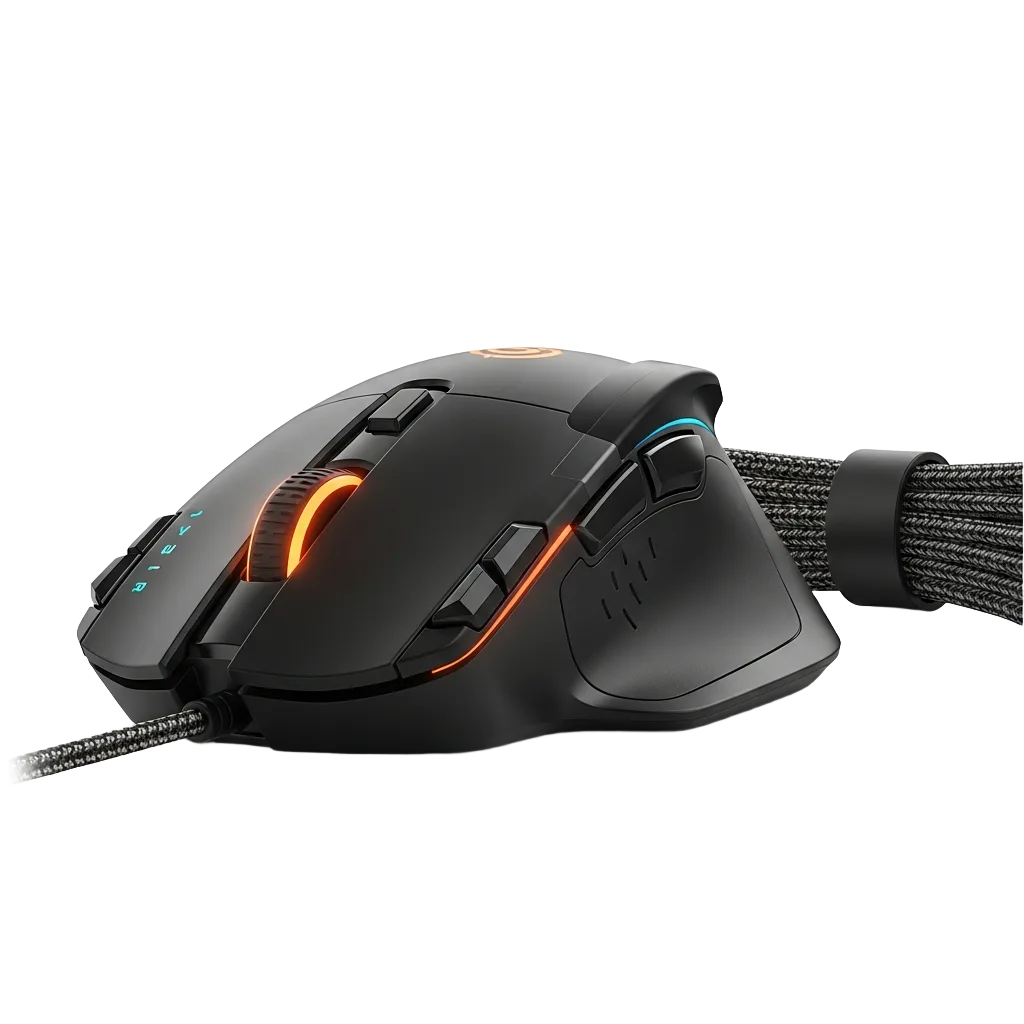
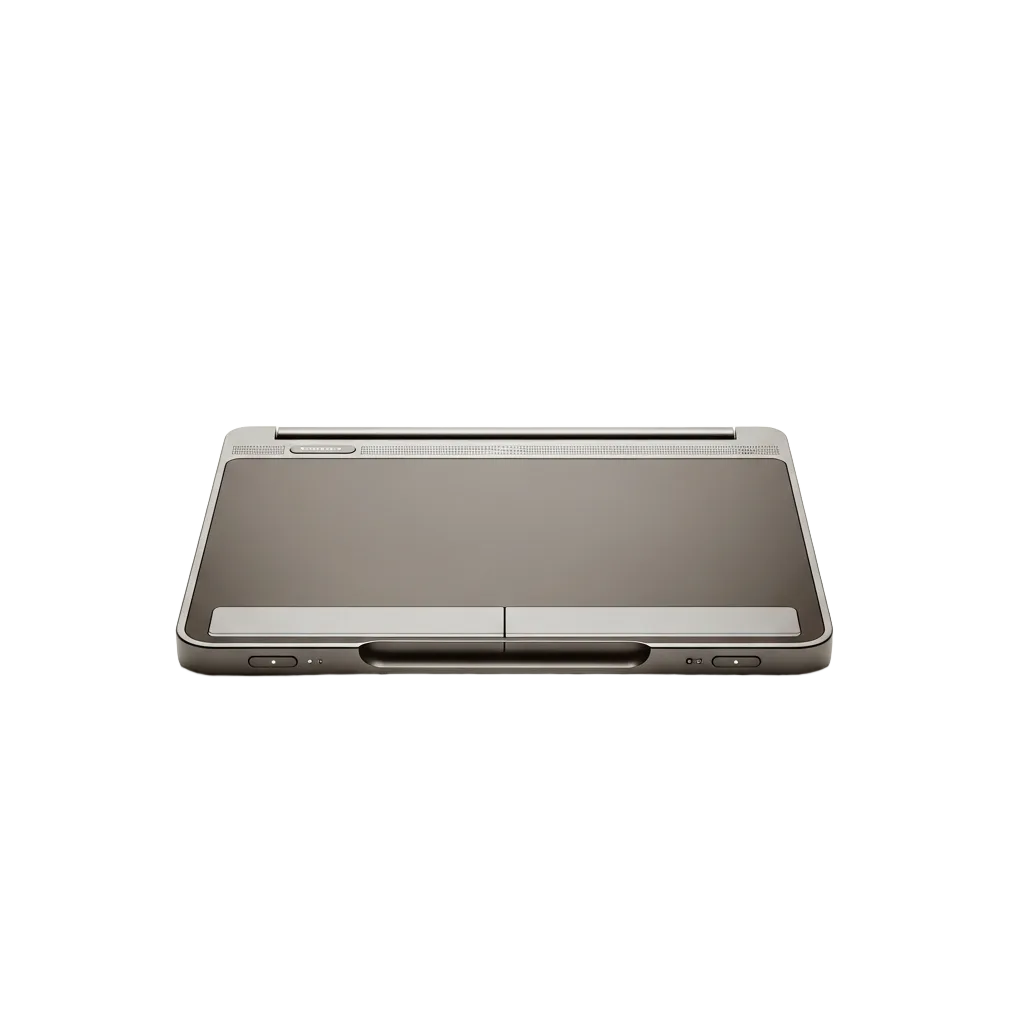

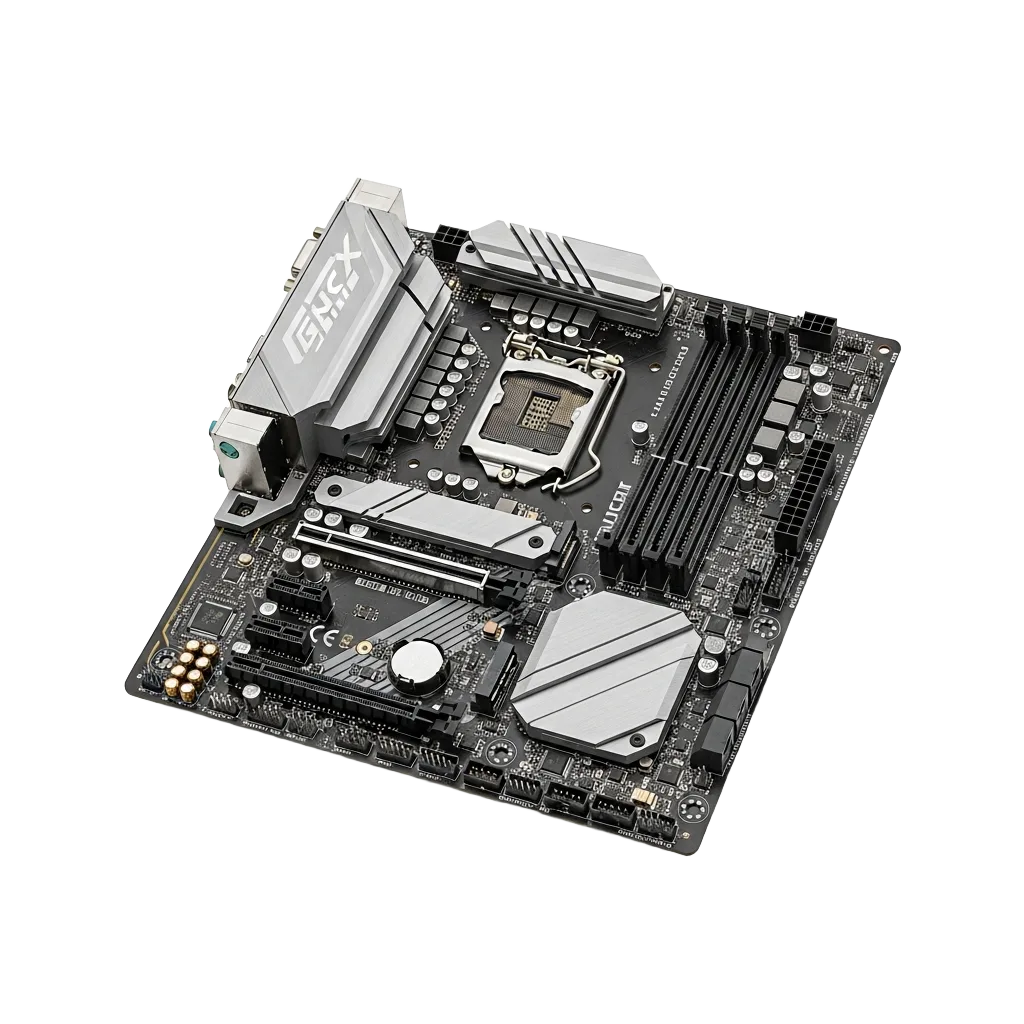
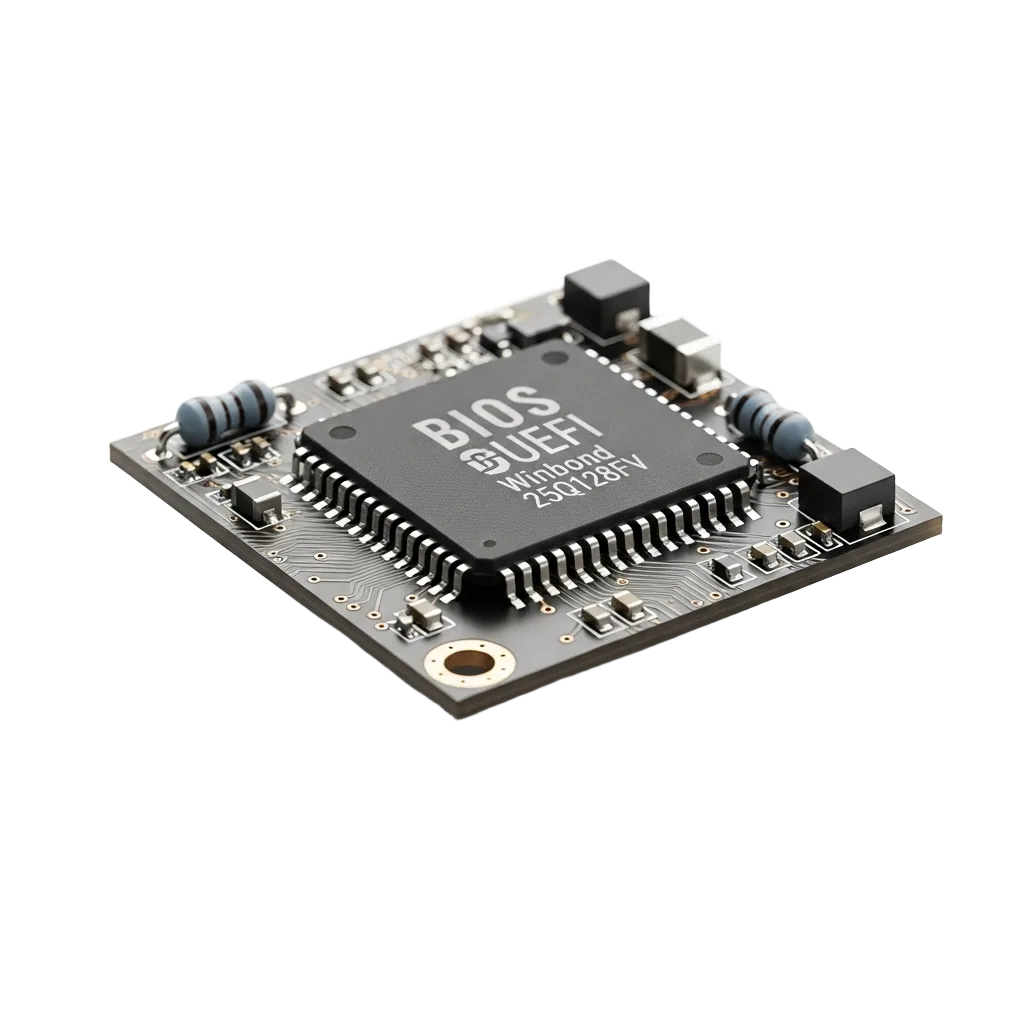
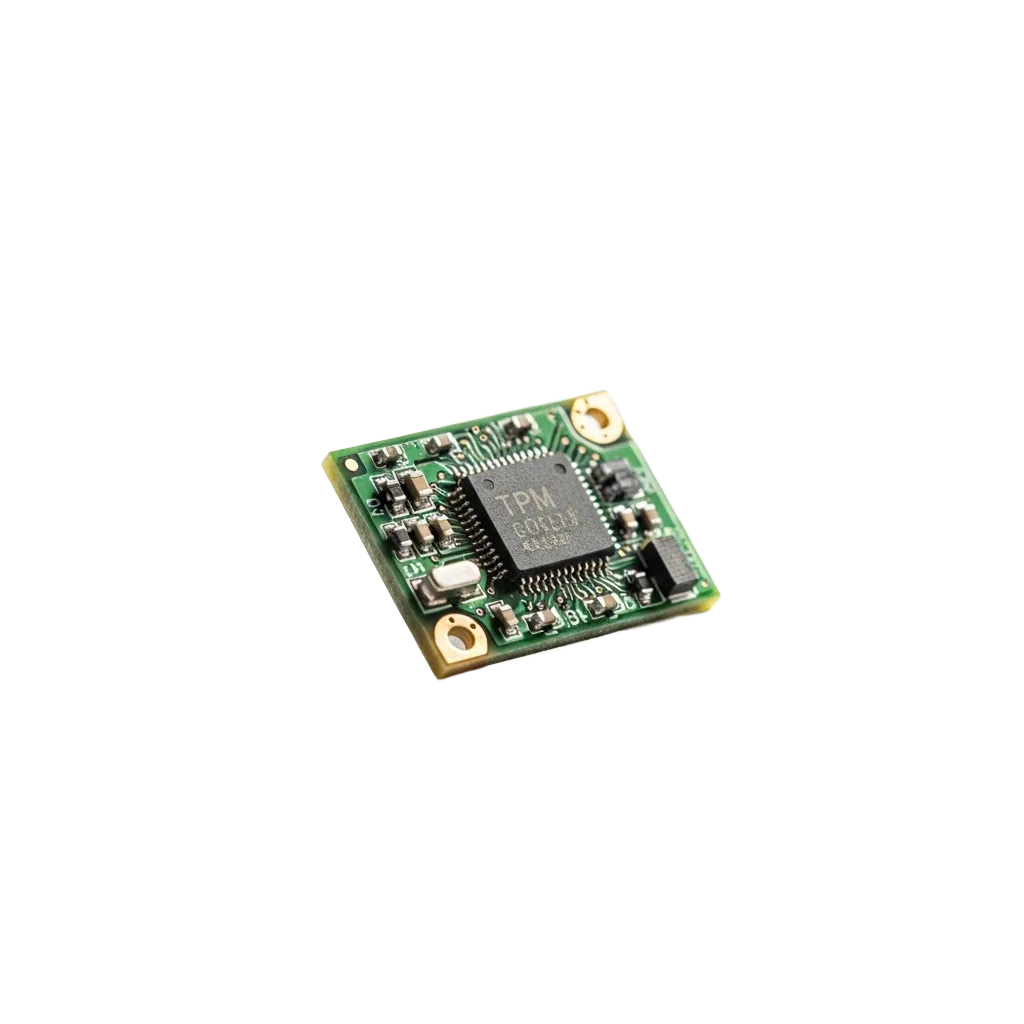
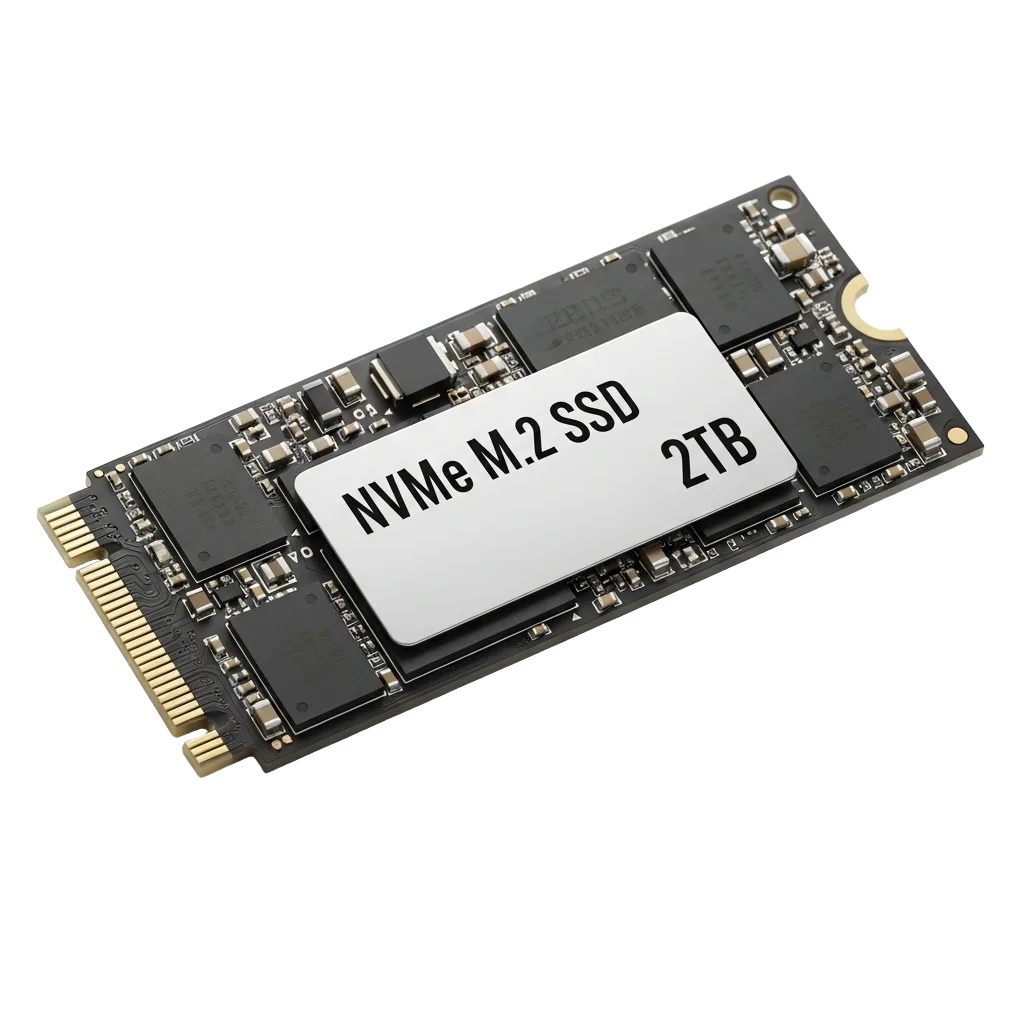
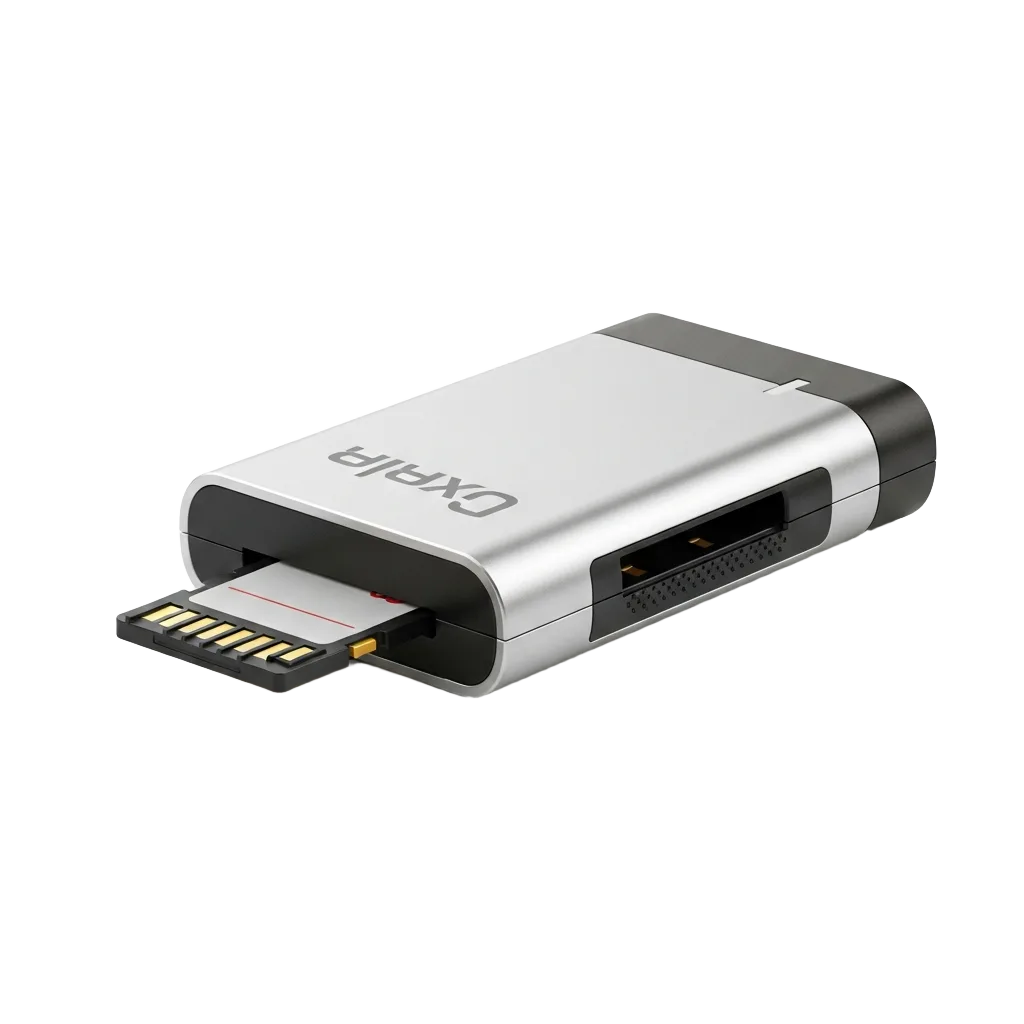
The Core of Your System
Foundational platform, storage and security drivers your PC depends on.
Explore All Drivers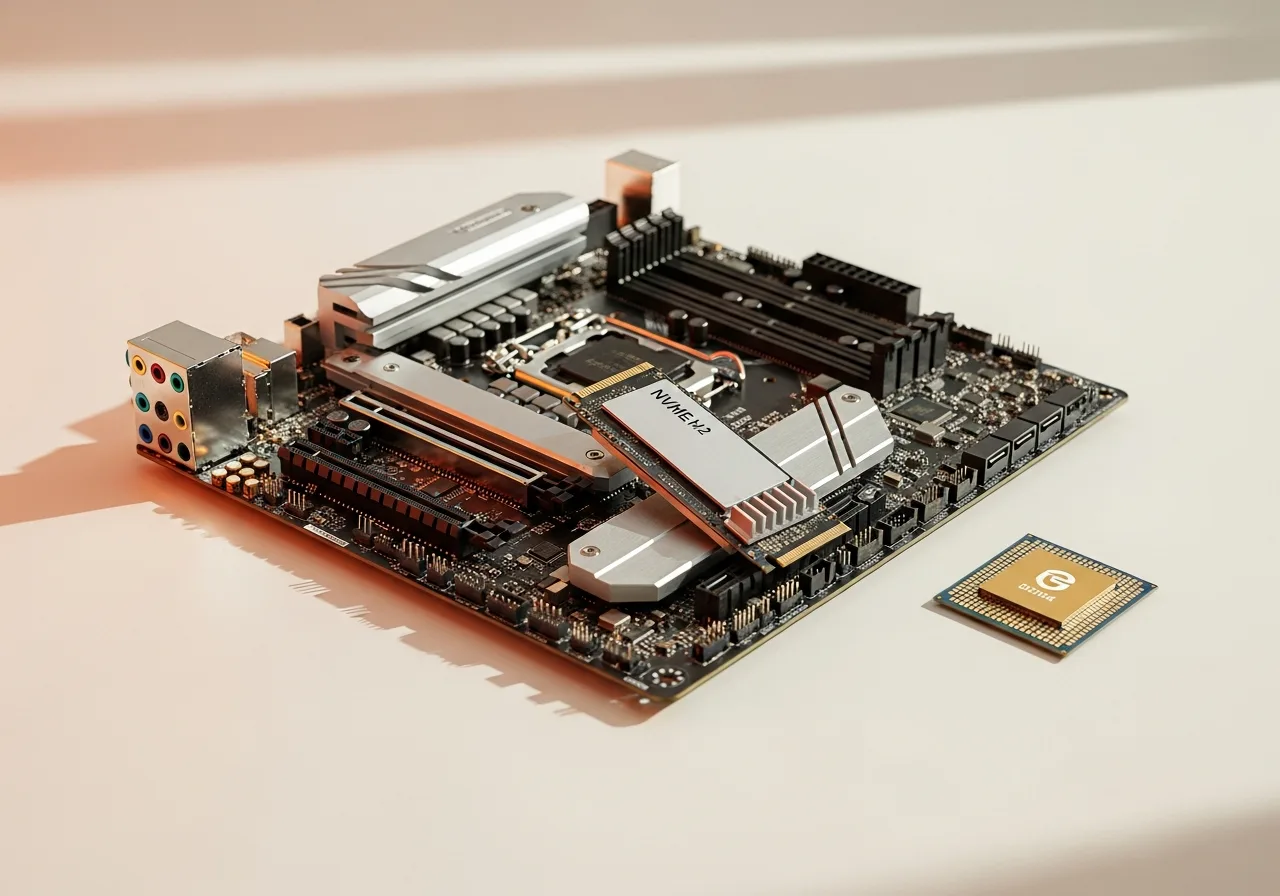
How to update your drivers in 4 steps
The standard, vendor‑recommended process for updating an OS driver — no extra software required.
Open your device manager
Right‑click Start and choose your device manager. Expand the category for the hardware you want to update (e.g. Display adapters).
Try your system update tool first
Settings → your system update tool → Advanced options → Optional updates. Most updates ship here, already vendor‑signed.

Get it from the manufacturer
For the very latest version, download it directly from the official OEM site (NVIDIA, AMD, Intel, Realtek, your PC brand).
Install, reboot, verify
Run the installer you downloaded from the manufacturer’s site, restart your PC, then re‑open your device manager to confirm the new version is reported correctly.
Why keep your drivers updated?
"If it ain’t broke, don’t fix it" only goes so far with drivers. Here’s what you’re actually getting from a fresh install.
Better performance
New graphics, chipset and storage drivers regularly unlock real frame‑rate, transfer‑speed, and battery‑life gains — especially on your PC.

Patched security holes
Drivers run at a high privilege level. Vendor updates frequently close vulnerabilities that malware can otherwise exploit to take over your system.

More stability, fewer crashes
Most system crash errors trace back to a buggy or mismatched driver. Keeping the core ones current dramatically reduces unexplained crashes and freezes.

New features unlocked
Updated drivers add support for new hardware standards — HDR, DLSS, Wi‑Fi 7, Bluetooth LE Audio — without needing to buy new components.
Latest guides & explainers
In‑depth articles covering the full PC driver workflow.
How to Update Drivers on Your PC
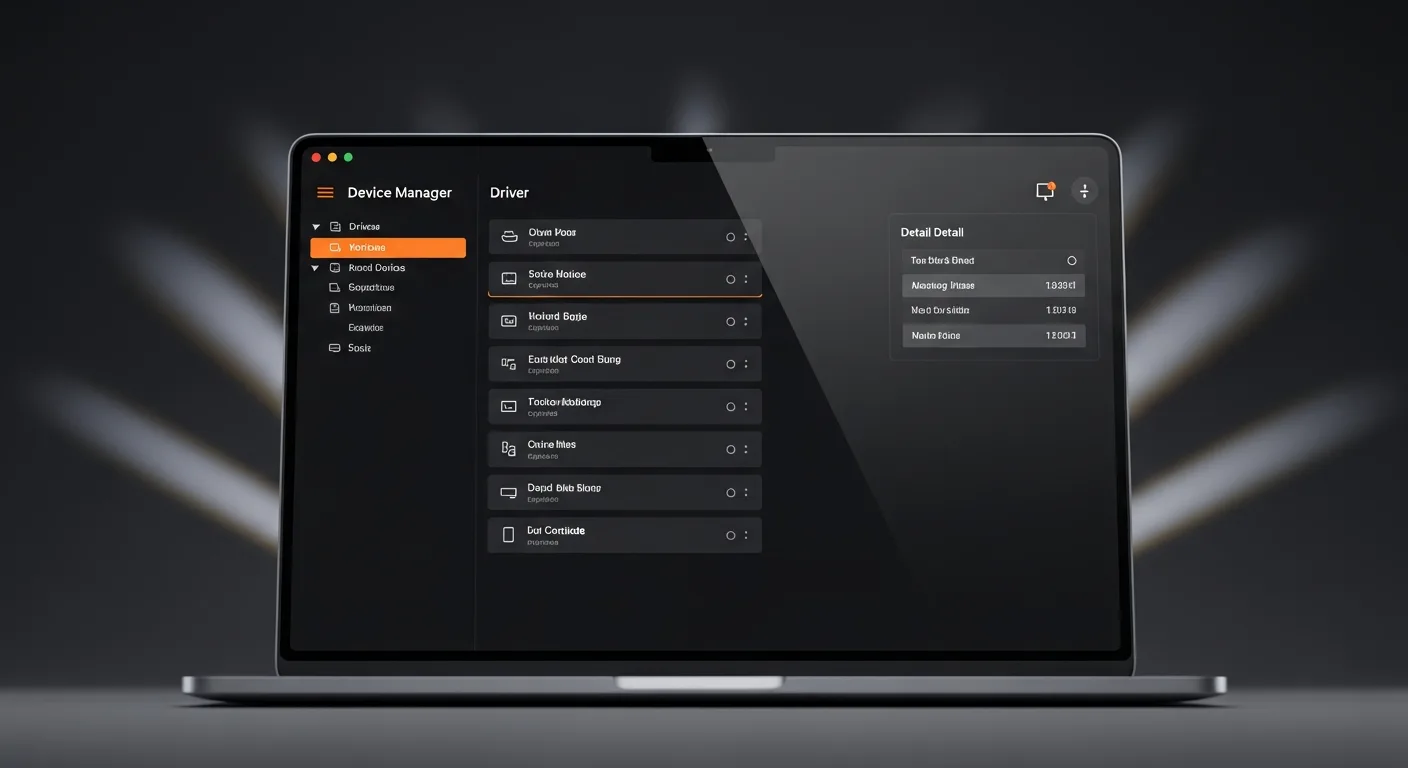
A complete step-by-step guide to finding and installing the latest device drivers for your PC safely.
Read guide
How to Fix Driver Errors on Your PC
Experiencing driver crashes or system crashes? Learn how to identify and fix common driver errors.
Read guide
What Are Device Drivers? A Complete Beginner's Guide
Confused about what drivers do? This beginner-friendly guide explains what device drivers are and why your PC needs them.
Read guide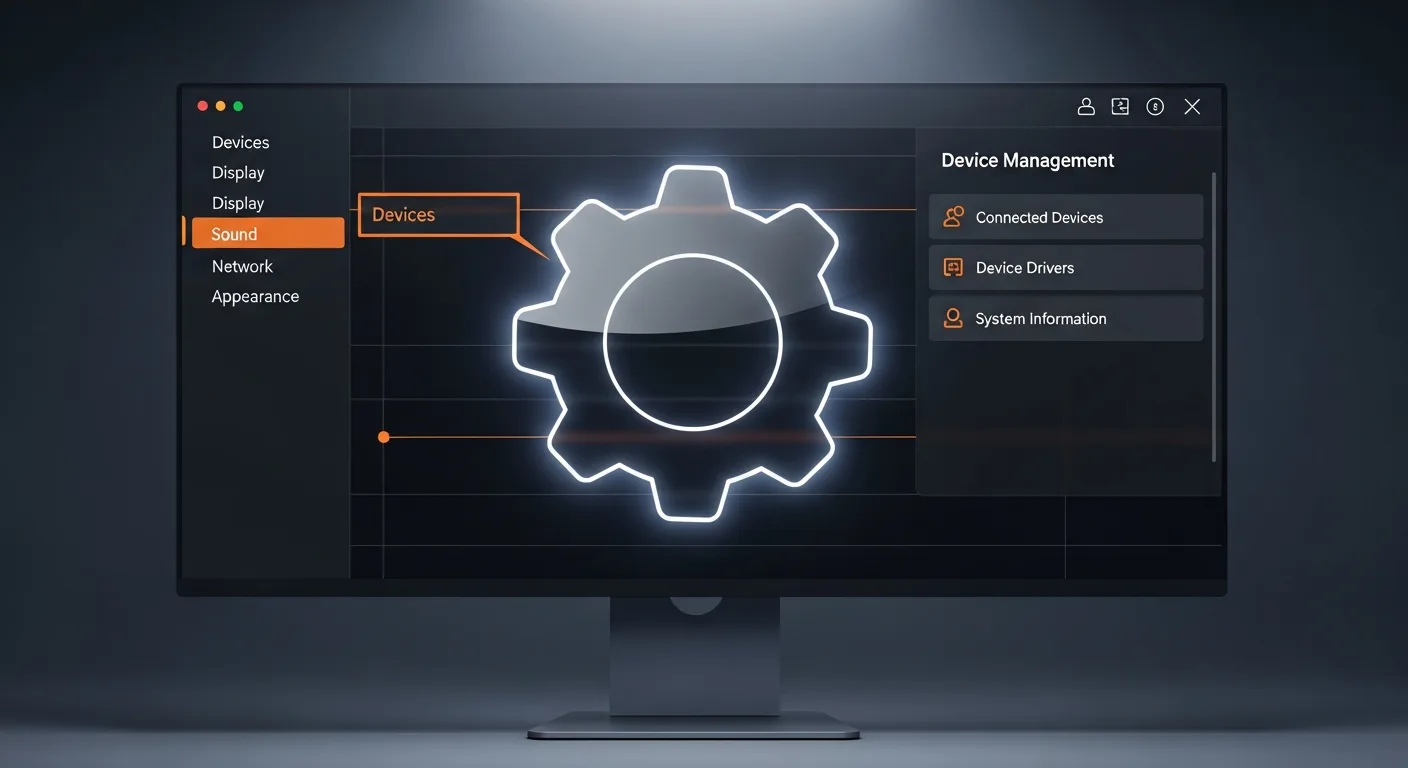
Your Device Manager: The Complete Guide
Master your device manager to inspect hardware, update drivers, and manage your PC's components.
Read guide
Quick lookup
Got an issue? Jump to the right driver
A quick guide to match the most common PC problems with the correct driver category. Choose an issue and we’ll point you in the right direction.
Compare
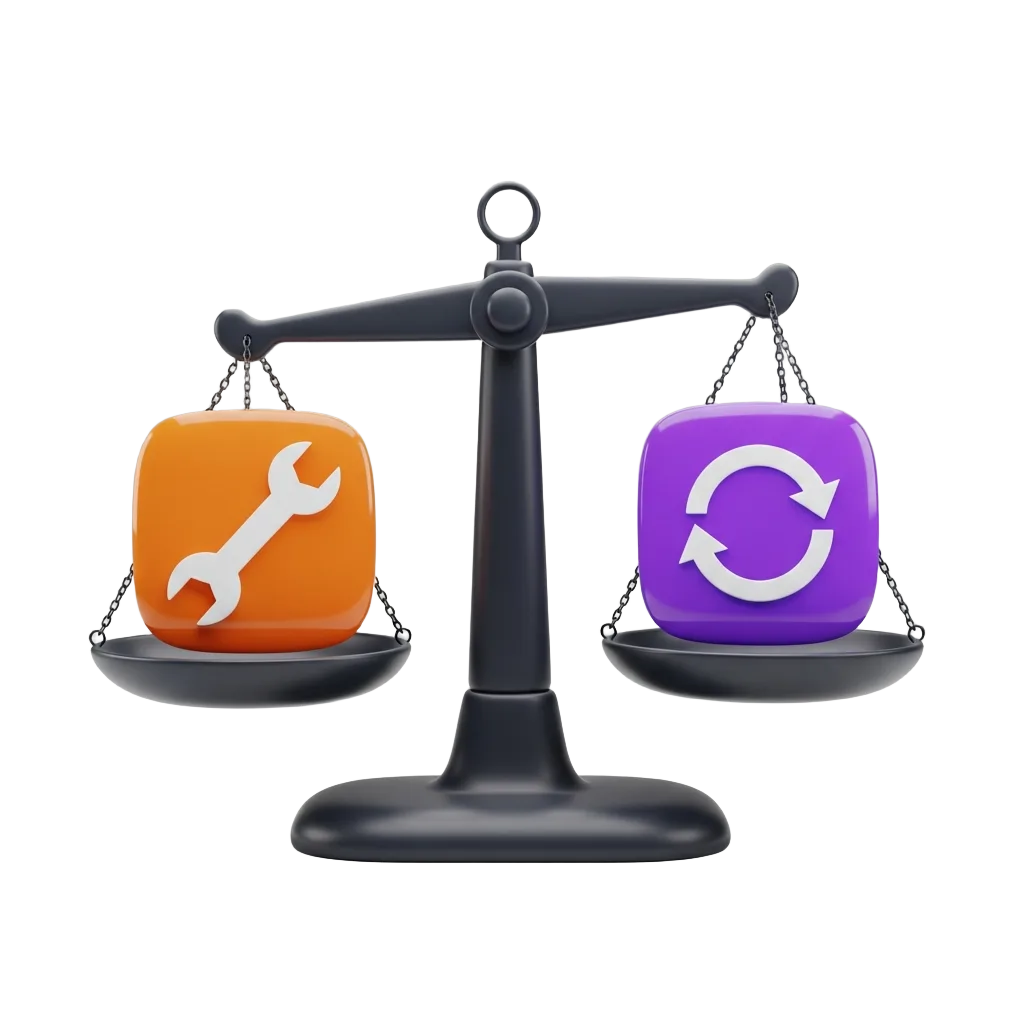
Manual vs. automatic driver updates
Both approaches have a place. Here’s the honest tradeoff we recommend to every reader.
Manual updates
Do it yourself, OEM way
Automatic updates
Via system update tool
Our recommendation: let your system update tool handle most drivers, but install graphics, chipset and Wi‑Fi drivers manually from the OEM for best performance.
Identify
Common Driver Issues, Explained
The six issues readers ask us about most. Each card explains what’s actually happening under the hood and what to check first.
Device Offline
HighThe device is powered and plugged in, but the OS reports it as offline.
Get help with this
Driver Conflict
MediumTwo drivers fight over the same hardware or the wrong one installs.
Get help with this

Audio Errors
MediumNo output, crackling, or missing audio services. Driver or OS audio issue.
Get help with this
Display Glitches
MediumFlickering, artifacts, or freezes during gaming or video playback.
Get help with thisFix
Resolve Common Driver Errors
The exact errors your operating system throws when a component misbehaves — and the guide that walks you through each one.
- 01
Driver Not Found
Code 28The OS can’t find a matching driver in its store. Force a re‑detection or fetch the INF from the vendor.
Read the fix - 02
Corrupted Driver
Code 39The image on disk is damaged or partially overwritten. Reinstall from the vendor’s original installer.
Read the fix - 03
Driver Conflict
Code 12Two drivers claim the same hardware resource (IRQ or address range). Resolve via your device manager.
Read the fix - 04
Driver Not Responding
Code 41GPU or storage driver took too long to respond and was reset by your OS. Update to the latest version.
Read the fix - 05
System Crash
SYSTEM_CRASHA driver tried to access memory it shouldn’t. Check the crash dump (.dmp) and update or roll it back.
Read the fix - 06
Failed to Load
Code 31The OS registered the driver but couldn’t initialise it — usually a missing dependency from the chipset package.
Read the fix
Reference
Types of Drivers and Their Roles
Every modern PC runs dozens of drivers in parallel. Here’s what each major class actually does and where you’ll meet it.
Graphics / Display
Renders the desktop, drives external monitors, and accelerates 3D and HDR content via DirectX or Vulkan.
Audio
Pipes sound between the OS and your audio hardware, including spatial audio and microphone arrays.
Chipset
Coordinates motherboard buses, PCIe lanes, power states and CPU idle behaviour.
Network
Manages Wi‑Fi, Ethernet and Bluetooth packet flow, including roaming and power saving.
Storage
Routes file I/O between the OS and the storage controller; required for NVMe SSDs to perform.
Input
Translates keystrokes, clicks, gestures and pen pressure into your OS input events.
Security / Platform
Drives TPM, fingerprint readers, secure boot and platform monitoring.
Map
Driver Family Tree
Every device class we cover, branched by the role it plays inside your OS. Click any leaf to jump to its guide.
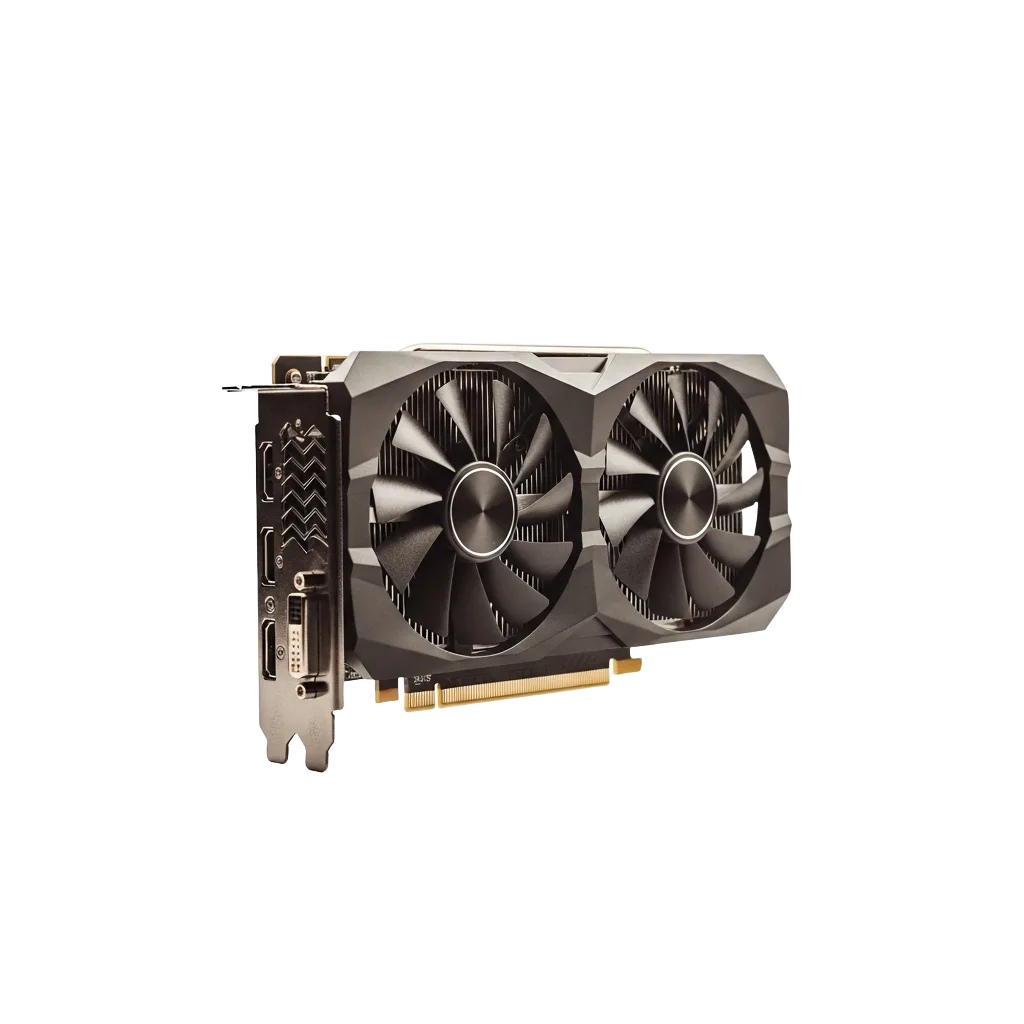
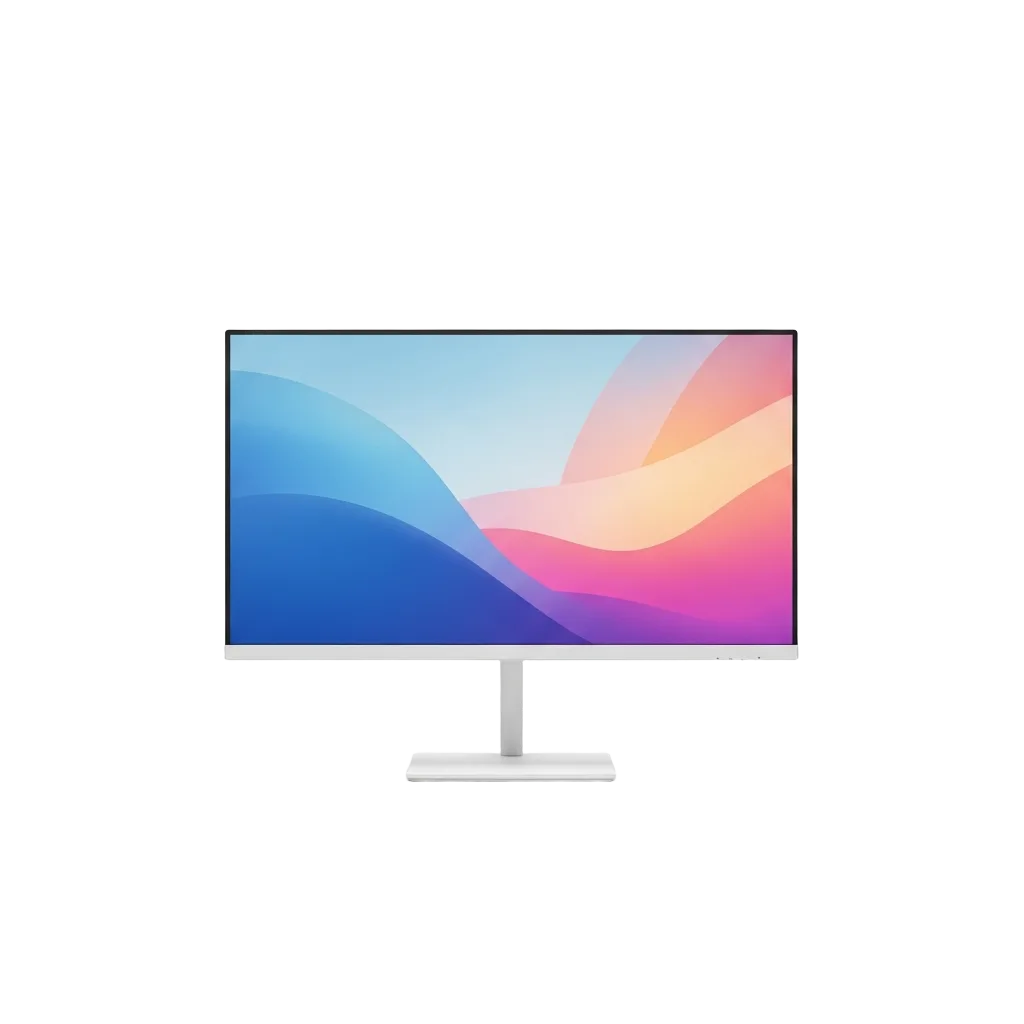
Drivers for what you see and hear — graphics cards, monitors, speakers, headphones, webcams.
Spotlight
Why these drivers matter
Your PC relies on the right drivers to deliver performance, stability, and the best experience possible.
Why Your Chipset Driver Matters
Updated chipset drivers keep your system stable and ensure all hardware communicates correctly.
Why Your Audio Driver Matters
Up‑to‑date audio drivers deliver clear sound and eliminate mic or playback issues.
Why Your Graphics Driver Matters
The latest GPU drivers bring higher FPS, fix visual bugs, and support new games and apps.
Why Your Network Driver Matters
Current network drivers keep Wi‑Fi stable after sleep and cut Bluetooth dropouts.

Understanding PC drivers
A device driver is a small piece of software that lets your operating system communicate with a specific piece of hardware. When you plug in a printer, connect a pair of headphones, or open a game that pushes your graphics card, it is the driver that translates the system’s generic requests into the exact instructions that particular component understands. Without the right driver, even perfectly good hardware sits idle or behaves unpredictably, which is why drivers sit quietly at the centre of almost everything your PC does.
Most people only think about drivers when something breaks. A screen starts flickering after an update, sound disappears when the laptop wakes from sleep, Wi‑Fi drops every few minutes, or a USB device suddenly shows an error. The vast majority of these everyday faults trace back to a driver that is outdated, mismatched, or corrupted. The good news is that fixing them rarely requires technical expertise — it usually comes down to identifying the device, finding the correct version, and installing it from a source you can trust.
That last point matters more than anything else. Because a driver runs with deep, privileged access to your system, an unofficial or tampered file is one of the simplest ways for malware to take hold. This is the single biggest reason DriverSourceHub exists: to point you toward genuine, free sources rather than the cluttered download portals and aggressive “driver updater” programs that dominate search results. We never host driver files ourselves, and we never charge for the information you need to keep your hardware working.
The golden rule: only install drivers from your operating system’s built‑in update tool or the manufacturer’s official support page — never from a third‑party “updater” or download portal.
In practice there are two safe places to get a driver. The first is your operating system’s built‑in update tool, which automatically delivers tested, vendor‑signed drivers for the most common hardware and is the right starting point for the majority of users. The second is the manufacturer’s own support page — the place to go when you need the very latest release, a feature that ships ahead of the operating system, or a driver for a specialised component that the system does not cover. Knowing which of the two to reach for is half the skill, and our guides explain exactly when each one applies.
You also do not need to update every driver all the time. If your hardware is working well, constant updating introduces more risk than benefit. The sensible approach is to keep graphics drivers reasonably current — especially if you game or do creative work — and to refresh the rest only when you hit a problem, install a major operating‑system update, or add new hardware. When an update does cause trouble, every modern system lets you roll back to the previous version in a couple of clicks, so you are never permanently stuck with a bad release.
Whether you are setting up a brand‑new machine, reviving an older one, or simply chasing down a single stubborn fault, the steps are the same: understand what the device does, confirm the version you have, and replace it cleanly from an official source. Every guide on DriverSourceHub is built around that approach, written in plain language and kept current as hardware and operating systems evolve — so you can solve the problem in front of you and feel confident doing it again next time.
Keeping your PC healthy over time
Drivers are only one part of a healthy machine, but they are the part that quietly underpins everything else. A computer that feels slow, crashes without warning, or loses its connection at the worst possible moment is often suffering from a driver issue rather than failing hardware. Getting into a simple, occasional routine — checking your core drivers when you notice a problem and after major operating‑system updates — prevents most of the frustrations people blame on a machine “getting old”.
Start with the components that do the heavy lifting. Graphics, chipset, and storage drivers have the biggest impact on day‑to‑day speed and stability, so they are worth keeping reasonably current. Network drivers for Wi‑Fi and Bluetooth come next, since they are the usual suspects behind dropped connections and pairing problems. Peripherals like printers, webcams, and game controllers tend to need attention only when you add them or when they stop behaving, so there is no need to fuss over them constantly.
Before you change anything, it pays to know what you already have. Opening your device manager and checking the driver provider, date, and version for a component takes seconds and tells you whether an update is even necessary. Comparing that against the latest version on the manufacturer’s support page is the single most useful habit you can build, because it turns guesswork into a clear yes‑or‑no decision and stops you reinstalling software you do not need.
Check first. Note the provider, date, and version before you touch anything.
Install clean. Close other apps, let it finish, and restart if asked.
Roll back fast. If a new driver misbehaves, revert before trying anything else.
When you do install a new driver, give it a clean start. Close other programs, let the installer finish completely, and restart if it asks you to — many issues people attribute to a “bad driver” are really the result of an interrupted installation. If a fresh driver introduces a new problem, resist the urge to keep layering more updates on top. Roll back to the previous version first, confirm the machine is stable again, and only then decide whether to try a different release.
It is also worth being sceptical of tools that promise to automate all of this for a fee. Paid driver updaters often exaggerate the number of “out of date” drivers they find, push unnecessary changes, and bundle extras you never asked for. The combination of your operating system’s update tool and the manufacturer’s official downloads handles the overwhelming majority of real‑world cases for free, with far less risk to your system.
Above all, handle your drivers the way you would any other important software: keep them genuine, keep them reasonably current, and change them deliberately rather than in a panic. A little understanding goes a long way, and the guides across DriverSourceHub are written to give you exactly that — clear, vendor‑neutral explanations that help you keep your PC fast, stable, and secure for years rather than months.
Frequently asked questions
The questions we get most often from our readers.
Are the drivers on DriverSourceHub safe to download?
DriverSourceHub does not host any of these files. Every guide links you to the official manufacturer or to your system update tool, which is the safest possible source. We never push paid updater tools.
Do I really need to update my drivers?
If your hardware works fine, you don't have to update everything constantly. We recommend updating graphics drivers regularly (especially for gaming), and refreshing the rest only when you experience a bug, install OS updates, or upgrade hardware.
What is the difference between a driver and firmware?
A driver runs inside your OS and lets the OS talk to a device. Firmware is software stored on the device itself (like your BIOS/UEFI or a router’s onboard software). Both can be updated, but the process is different.
Can outdated drivers slow down my PC?
Yes. Old graphics, chipset, or storage drivers are a common cause of stutter, low frame rates, slow file transfers, and Wi‑Fi drops on your PC.
How do I know which driver version I have installed?
Open your device manager, right‑click the device, choose Properties → Driver tab to see the provider, date, and version number, which you can compare against the manufacturer’s latest release.
What should I do if a driver update breaks my PC?
Open your device manager, right‑click the affected device, choose Properties → Driver → Roll Back. If that’s greyed out, uninstall the device with the ‘delete the software’ option ticked and reboot — your operating system will reinstall a known‑good version.
Are third‑party driver updater programs worth it?
No, and we have a full guide explaining why. Most are bloatware that flag false issues to sell you a subscription. your system update tool plus the manufacturer’s site covers 99% of cases for free.
Do I need separate drivers for a laptop and a desktop?
Often the same vendor‑signed driver covers both, but sometimes manufacturers ship distinct builds. Always check the OS dropdown on the manufacturer’s download page before installing.
Where is the safest place to download a driver?
There are only two sources we recommend: your operating system’s built‑in update tool, which delivers tested, vendor‑signed drivers automatically, and the hardware manufacturer’s own support page when you need the very latest release. Avoid generic “driver download” portals — because a driver runs with deep system access, an unofficial file is one of the easiest ways for malware to take hold.
How often should I check my drivers?
There is no need to check constantly. A sensible routine is to keep graphics drivers reasonably current — especially if you game or do creative work — and to review the rest only when you notice a problem, after a major operating‑system update, or when you add new hardware. Stable, working drivers rarely need to be touched.
Will updating a driver delete my files or settings?
No. Installing a driver only replaces the software that lets your operating system talk to a device; it does not affect your documents, photos, or personal settings. The main thing to be aware of is that a new driver can occasionally introduce a bug, which is why every modern system lets you roll back to the previous version in a couple of clicks.
What is the difference between your operating system’s update tool and the manufacturer’s site?
The built‑in update tool is convenient and safe but sometimes lags behind, offering a slightly older, heavily tested driver. The manufacturer’s site carries the newest releases, including features that ship ahead of the operating system. For most users the built‑in tool is the right default; reach for the manufacturer’s site when you specifically need the latest version or a specialised component is not covered.
Ready to fix your driver?
Search by hardware name or browse our full library of 22 PC driver guides. Every link points to your manufacturer’s official download — never a third‑party mirror.